
1. Introduction
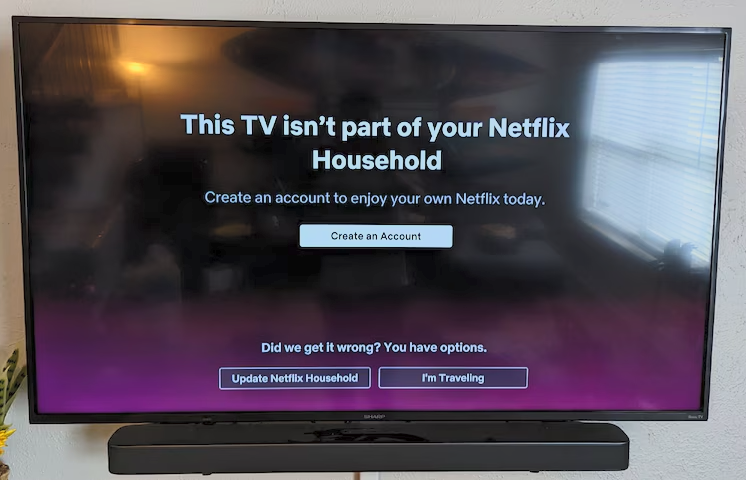
Netflix’s crackdown on password sharing has changed the game for families and friends who once enjoyed streaming from multiple locations under a single account. With their new Household Restriction Policy, users are now expected to stream only from their primary home network — or face annoying interruptions and account limitations.
But what if you have a second home, or your family lives in another city, and you still want everyone to access Netflix seamlessly?
With the power of UniFi Policy-Based Routing and a Wireguard VPN tunnel, you can route specific traffic — like Netflix — from your second location through your primary household network, fooling Netflix into thinking all devices are under one roof.
This guide walks you through the setup.
2. What Is Netflix’s Household Restriction?
As of 2023, Netflix began enforcing limits on account sharing outside of a “household.” Here’s how it works:
- A “household” is defined as all devices using the same internet connection (IP address).
- Netflix monitors IP addresses, device IDs, and streaming behavior to enforce this.
- If a device logs in from a different IP/network for too long, it may be blocked or prompted to start a new account.
- Netflix allows temporary access for travelers — but not for long-term use in separate locations.
This poses a challenge for users with:
- Second homes
- Children living in dorms
- Shared family plans across cities
3. The Solution: VPN + UniFi Policy-Based Routing
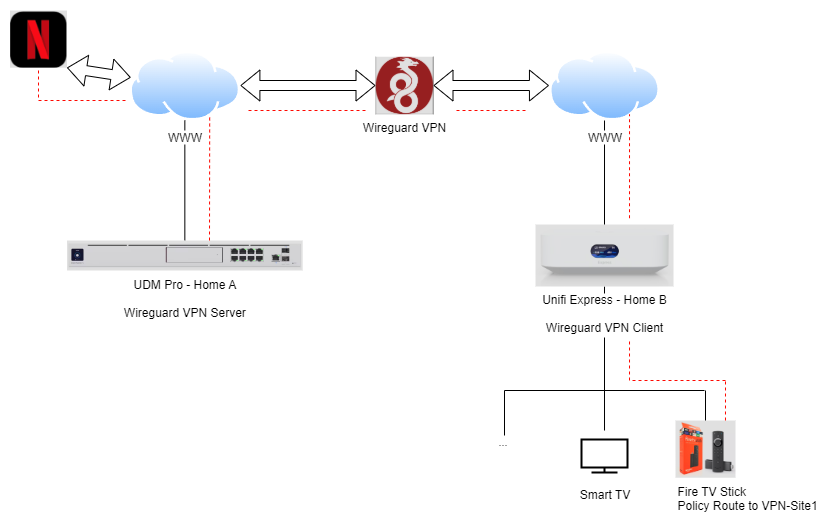
Instead of trying to spoof Netflix with unstable residential proxies or unreliable commercial VPNs, we’re going to build our own secure VPN tunnel between your two locations and route the Internet traffic from the second location through the main household internet.
This way:
- Devices in Home B (remote location) appear to be streaming from Home A (Netflix household)
3.1 What You’ll Need
| Component | Requirement |
|---|---|
| UniFi Cloud Gateway | At both Home A and Home B |
| Static IP (or DDNS) | At Home A |
| VPN (WireGuard) | Set up between both homes |
| Netflix Account | Logged in at Home A |
| Basic Networking Knowledge | Routing, DNS, CLI (optional) |
4. Network Diagram
5. Step-by-Step Setup
5.1 Set Up VPN Tunnel (Wireguard)
Configure WireGuard:
- On Home A (the main household):
- Set up a WireGuard server
- Instructions in my previous post: Configure Unifi Network 9.2.87 for WireGuard VPN Access (UDM-PRO)
- Set up a WireGuard server
- On Home B:
- Set up WireGuard as a client
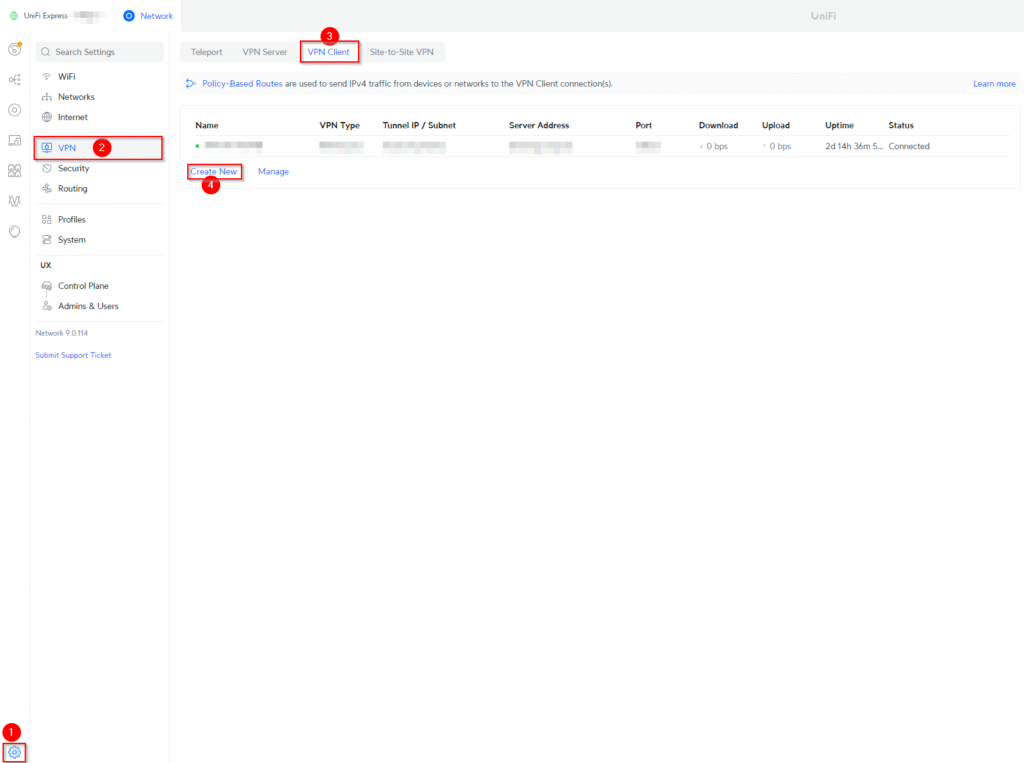
- Login to your Unifi Gateway and go to Settings > VPN > VPN Client > Create New
- Set up WireGuard as a client
- You have to generate a Wireguard Client at Home A for your Unifi Gateway at Home B – Configure Unifi Network 9.2.87 for WireGuard VPN Access (UDM-PRO)
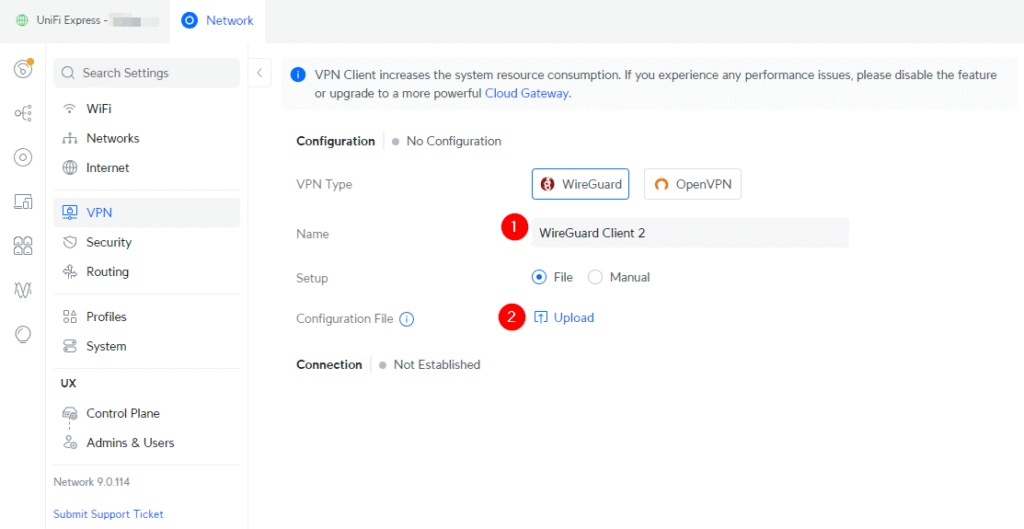
- Import the Wireguard File Configuration for the Unifi Gateway that you generated from the previous step at Home A
- Ensure routing to Home A’s LAN and internet is possible via the tunnel
Test the tunnel by pinging a Home A device from Home B.
- Create Policy Based Route on Unifi Cloud Gateway at Home B
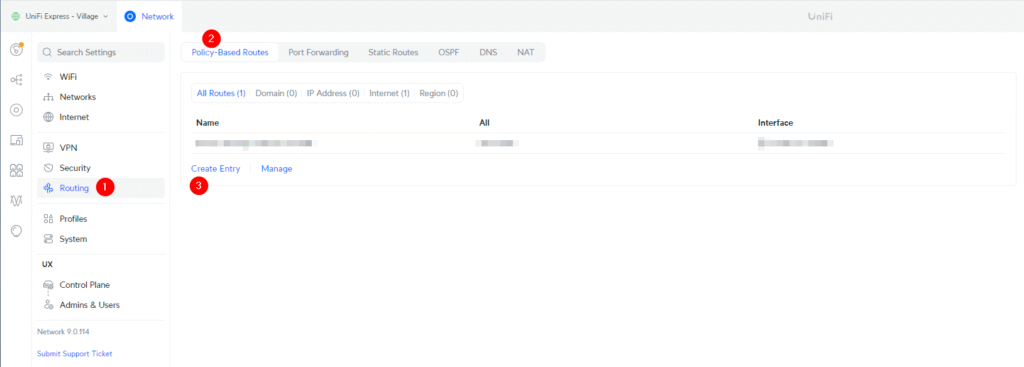
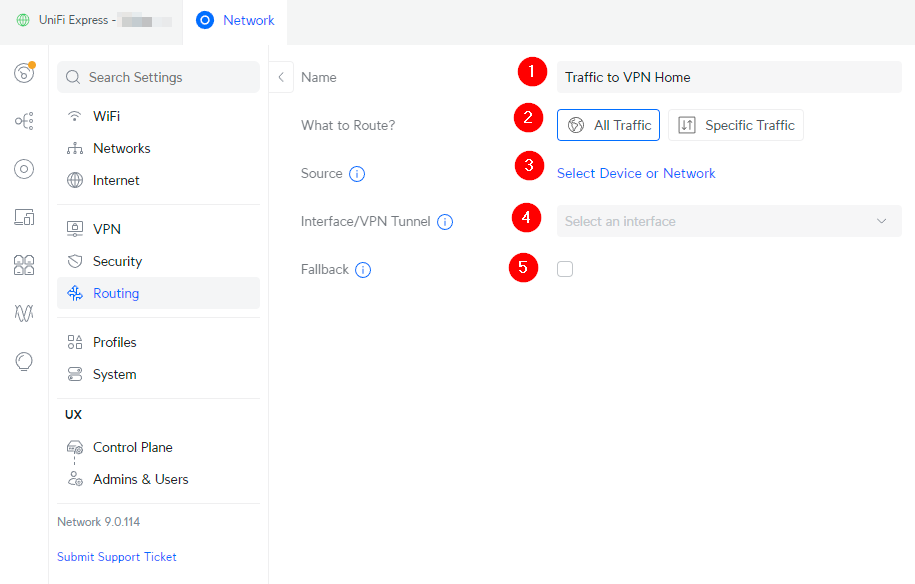
- Create a new entry
Name: Name of your policy
What to Route?: In my example I use “All Traffic”
Source: Select the Network or specific device that you want – In my case I have selected the Fire TV Stick
Interface/VPN Tunnel: Select your VPN Client that you have configured previously
Fallback: DIsabled
5.2 Test It Out
- Restart the Netflix app on your Home B device
- Log into Netflix and start streaming
- Go to
https://www.whatismyip.com/from the device and confirm the IP matches Home A
This guide can work under the same principle if you create more Wireguard Client profiles for other devices (laptops, mobile phones etc) while you travel and you’re outside of your home.
⚠️ 6. Legal Note
This setup may violate Netflix’s Terms of Service. It’s intended for educational purposes and private family networks — proceed at your own risk.
Netflix’s violations may lead to account limitations or termination.
7. Conclusion
With a bit of networking know-how and the power of UniFi + VPNs, you can maintain a seamless Netflix experience for your household — even across cities. No sketchy proxies, no third-party accounts — just your family, your hardware, your rules.
If you’re already running a home lab or have multiple homes connected via VPN, this setup is a great way to consolidate your services and save on subscription costs.
Items used in this guide:
- Unifi Dream Machine Pro: https://amzn.to/4n7lWHk
- Unifi Express: https://amzn.to/4lUXB6L
If you’ve found my post helpful, I’d love it if you bought me a coffee! ☕😊
