
This article is written for VMware vCenter Appliance version 7.0.3
Recently I had to patch a vCenter Appliance which was on version 7.0.3 but upon running the “Pre-update Checks” I was greeting with a Warning message that the “/storage/archive” directory had not enough space left.


Let’s check and verify the message by looking at the disks of vCenter appliance.
- Login to your vCenter appliance VAMI via https://vcenter-appliance-fqdn:5480
- Check under “Monitor > Disks”
- In my case, I had “Hard disk 13” being the issue
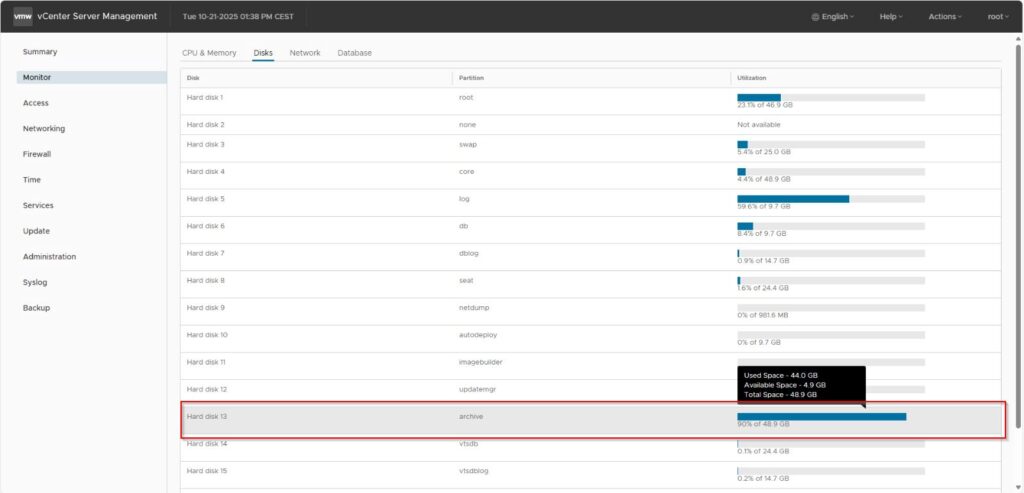
So, now that we verified the problem we have 2 options on how we can solve this according to the following support article (https://knowledge.broadcom.com/external/article?legacyId=76563)
- Expand the virtual disk
- Remove old archive files from that directory
I decided to just remove the old archive files, so let’s see how we can do that.
Before we continue, make sure you have taken a vCenter Appliance snapshot! (I can’t stress this enough)
- Login to your vCenter Appliance over SSH
- Enable “shell”
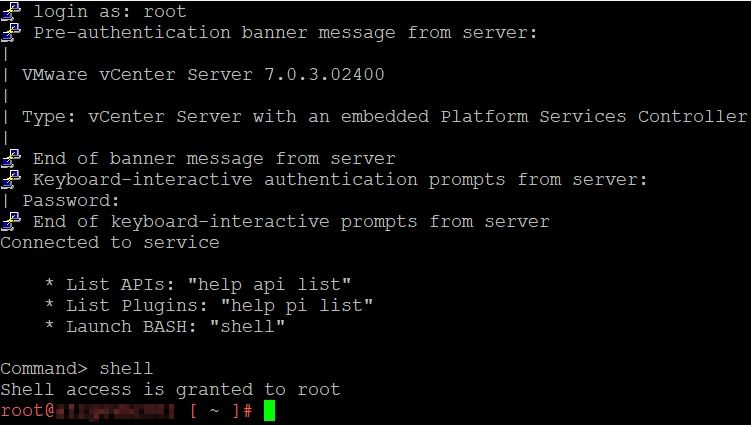
- Navigate to directory /storage/archive/vpostgres
# cd /storage/archive/vpostgres
- Let’s find now the old files with the following command – You can use a number you see fit, I’m going to use “30” as I want to find files that are older than 30 days.
# find * -mtime +30
- You will now see on your screen the files that are older than 30 days
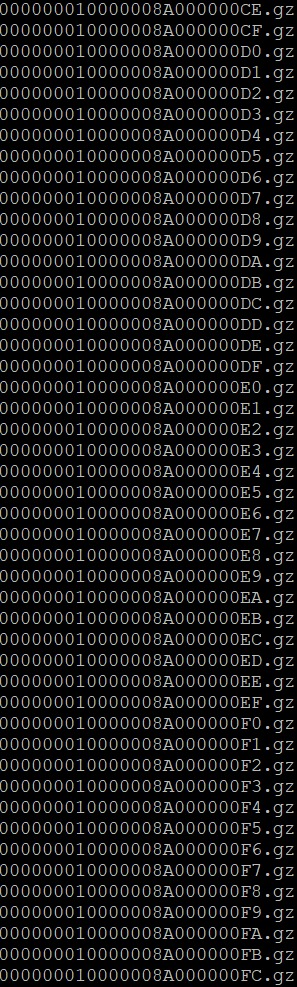
- Let’s remove the files older than 30 days with the following command
# find *.* -mtime +30 | xargs rm
- Let’s verify that we removed the files older than 30 days by running again the following
# find * -mtime +30- Let’s use command “df -h” to display the disk space in a human-readable form
# df -h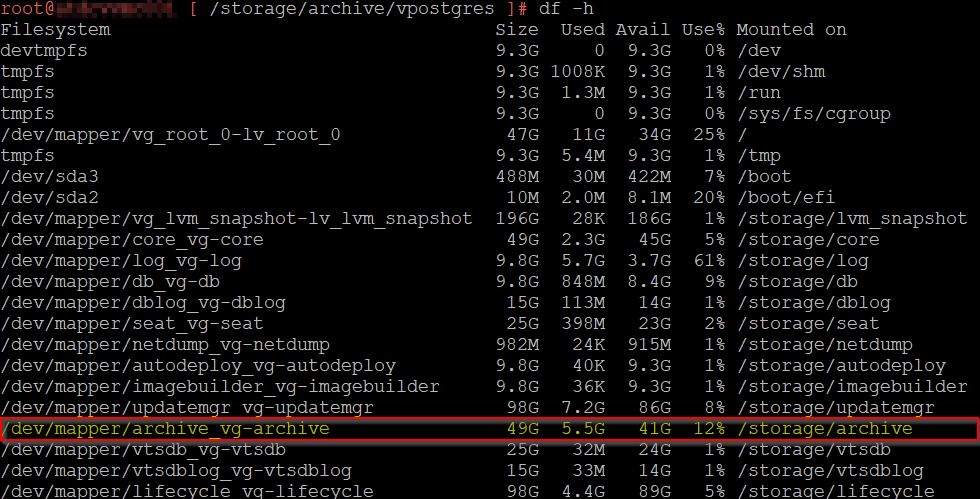
In my case I had a significant size reduction in that directory.
The vCenter Appliance GUI will update itself with the new free space in 20-30 minutes, but you don’t have to wait for that.
You can now proceed in the vCenter Appliance GUI and continue with the patching.
If you’ve found my post helpful, I’d love it if you bought me a coffee! ☕😊

Thanks. Sharing is Caring.