
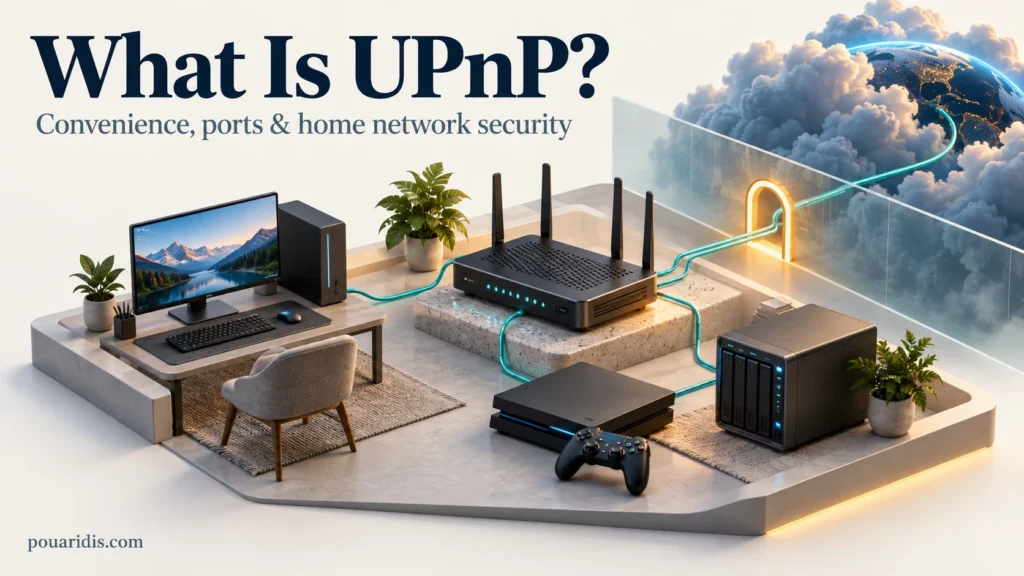
A multiplayer game complains about your NAT type. Plex works in the living room but not when you leave home. Somewhere in your router settings, there is a switch called UPnP—and plenty of advice telling you to turn it either on or off.
The useful question is what that switch allows your devices to do. UPnP can reduce the effort needed to make incoming connections work, but it also gives applications more control over your router’s exposure to the internet.
This guide explains how UPnP works, when it helps, what its risks actually are, and how to decide whether you need it. It also separates three things that are often confused: local device discovery, home-router port forwarding, and port forwarding through a commercial VPN.
Affiliate disclosure: This article contains affiliate links. If you purchase through one of these links, I may earn a commission at no additional cost to you.
What is UPnP? The quick answer
UPnP stands for Universal Plug and Play. It is a family of networking technologies that lets compatible devices discover services and interact automatically. On home routers, the UPnP setting usually refers to Internet Gateway Device (IGD) functionality, which allows applications to request port mappings for incoming connections.
My recommendation: If you have no identified need for automatic inbound mappings, disable the router’s UPnP port-mapping feature and test your applications. If a particular game or service depends on it, weigh that convenience against your router’s ability to restrict and monitor requests. Turning it off is a sensible starting point, not a complete security strategy.
Local discovery and router port mapping are different
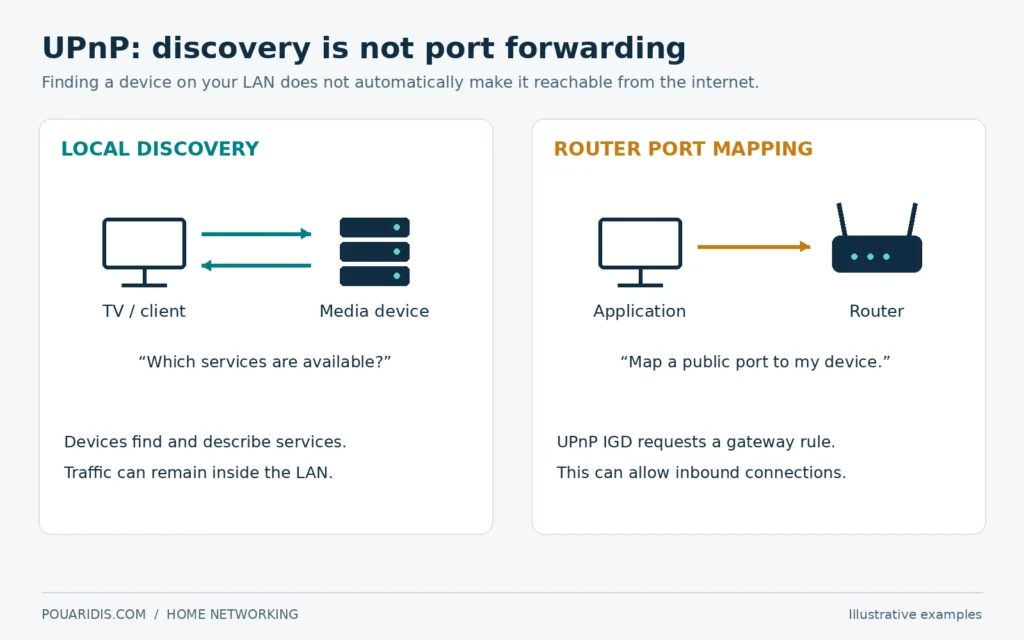
A TV finding a media service on the same network is different from an internet user reaching that service through your router. Discovery answers “What is available here?” Port mapping answers “Where should this incoming connection go?”
UPnP includes discovery, descriptions of devices and services, control actions, and event notifications. The UPnP Device Architecture specification describes these components. Discovery commonly uses SSDP over UDP port 1900; IPv4 discovery uses multicast. Descriptions are retrieved over HTTP, while control actions use SOAP.
A router’s UPnP toggle usually controls its gateway service. Disabling it does not necessarily disable every UPnP-capable service on your computers or media devices. Conversely, not every device-discovery feature uses UPnP.
How UPnP port forwarding works
Imagine an application on a PC with the private address 192.168.1.50. In this illustrative example, it listens on TCP port 51413. The number is an example, not a recommendation for every application.
On a typical home IPv4 connection, devices share the router’s public address through NAT. Connections initiated from inside create state that permits matching replies. An unsolicited incoming connection without matching state or an applicable rule is normally blocked by the gateway’s firewall/NAT behavior. NAT translates addresses; it should not be treated as a substitute for firewall policy.
- The application discovers a compatible gateway. UPnP discovery and service descriptions identify the relevant router service.
- It requests a mapping. The request identifies a transport protocol, an external port, and an internal destination.
- The router accepts or rejects the request. Support, policy, existing mappings, and port conflicts affect the result.
- Incoming traffic can follow the rule. If accepted, traffic for the mapped public endpoint can be forwarded to the application.
For our example, TCP port 51413 on the home public address forwards to 192.168.1.50:51413. The external and internal port numbers do not always need to match. TCP and UDP mappings are separate.
A successful mapping does not guarantee a working service. The application must be listening, its host firewall must permit the traffic, and upstream routing must allow the connection. Mapping lifetimes and cleanup also depend on the client and gateway, so review the actual mapping table rather than assuming a closed application has removed everything.

UPnP vs manual port forwarding vs NAT-PMP and PCP
| Method | Who requests or configures it? | Main distinction |
|---|---|---|
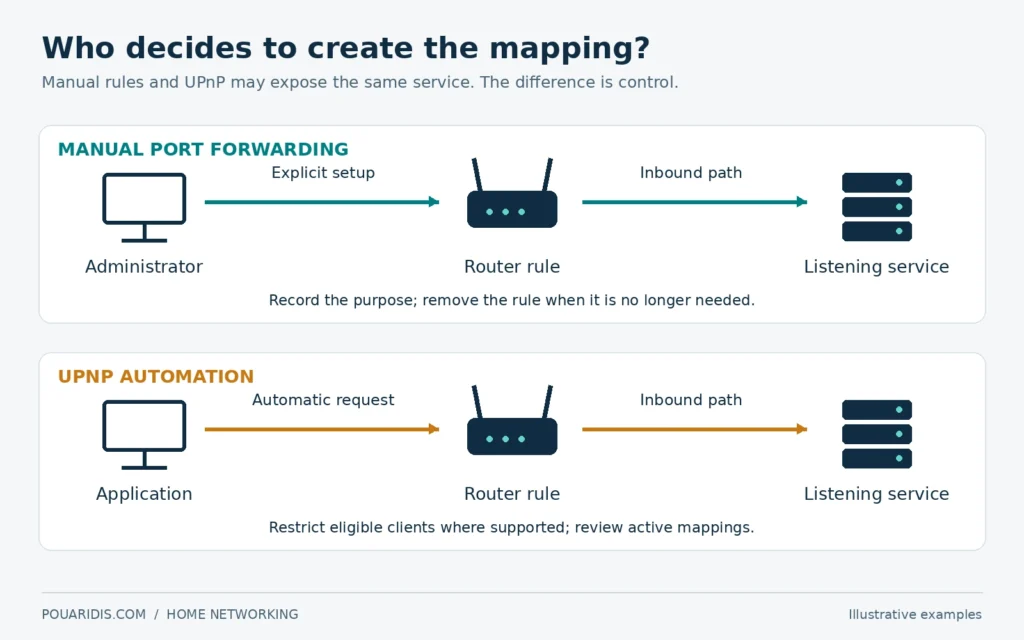
| Manual port forwarding | An administrator | You explicitly choose the destination, protocol, and ports. |
| UPnP IGD | A compatible application or device | Automates gateway mappings through UPnP services. |
| NAT-PMP | A compatible client | A separate protocol for requesting NAT mappings. |
| PCP | A compatible client | Controls translation or forwarding behavior in supported NATs and firewalls, including IPv4 and IPv6 scenarios. |
NAT-PMP and PCP are related to the same connectivity problem, but neither is another name for UPnP. Your router may expose their controls together or separately. Disabling UPnP alone therefore does not prove that every automatic mapping mechanism is disabled.
Manual forwarding provides a deliberate approval step. It does not make an exposed application inherently safer: an outdated service is still outdated whether a person or an app created its forwarding rule.
What are the security risks of UPnP?
Applications can create exposure you did not explicitly approve
Common home-router implementations trust requests from the LAN without asking you to approve each one. A legitimate application can publish a service unexpectedly; a compromised local device may also request mappings. The relevant question is which clients can control the gateway, not simply whether your Wi-Fi has a password.
A mapped service still needs its own security
A reachable port is not automatically a successful attack. Risk depends on the service behind it, its authentication, its configuration, and any vulnerabilities. Avoid exposing management interfaces just because a router makes doing so easy.
Implementation bugs and internet-facing discovery are separate problems
A gateway feature restricted to the intended local network is different from a UPnP service reachable from the WAN. Historical vulnerabilities demonstrate why implementation quality matters. For example, CERT/CC’s CallStranger advisory describes abuse of UPnP subscription handling to send traffic to unintended destinations. That is evidence of a specific vulnerability class, not proof that every current router is affected.
Keep firmware current, replace unsupported hardware, and prevent unsolicited internet access to discovery and control services. Disabling automatic mappings does not repair unrelated router vulnerabilities or remove malware already on the LAN.
Restrictions vary by router
Some platforms offer client and port access controls. For example, pfSense documents default-deny and access-list options for its mapping service, with scope limitations that administrators need to read carefully. A basic on/off switch on another router is not equivalent to those controls.
Should you disable UPnP?
I would start by asking what actually needs to receive new connections from the internet. If the answer is “nothing I can identify,” there is little reason to give applications automatic mapping permission.
| Your situation | Practical approach |
|---|---|
| Browsing, email, video calls, and ordinary streaming | Try disabling router UPnP. Test your actual apps; outbound connections usually continue to work. |
| A game or console needs inbound connectivity | Check its official guidance. Consider restricted UPnP if your router supports it, or carefully scoped manual rules. |
| You need private access to a NAS or administration page | Consider an authenticated remote-access VPN instead of publishing each service. |
| You intentionally host a public service | Document the required exposure and maintain the service, whichever mapping method you choose. |
| The router is unsupported or behaves unexpectedly | Address the hardware or firmware problem; changing one switch is insufficient. |
If you retain UPnP, restrict it to eligible devices or networks where supported, keep guest and untrusted devices separated with appropriate firewall rules, and check the active mappings periodically. Merely creating a second Wi-Fi name does not establish that isolation.
UPnP and gaming: connectivity, not a speed upgrade
UPnP can help games or consoles receive connections without repeated manual configuration. This can matter for peer-to-peer sessions, hosting, or some voice features. It does not increase the speed of your internet subscription or guarantee lower latency.
“Open,” “moderate,” and “strict” NAT labels are platform-specific diagnostics rather than universal security ratings. Follow the game or console’s guidance and test the function you actually need. Avoid copying large port ranges from unrelated tutorials or putting an entire PC in a router’s “DMZ host” mode as a first fix.
If multiple consoles are involved, assigning the same public IP, protocol, and external port to two different internal destinations is not a straightforward one-to-one forwarding configuration. Automatic negotiation may help, but it cannot override every game, router, or ISP limitation.
UPnP with Plex, Jellyfin, and home media servers
Separate watching inside your home from accessing the server remotely. A TV reaching a local server does not, by itself, require a public inbound port.
Plex documents an automatic remote-access setup that first attempts UPnP or NAT-PMP. If you turn those features off, check Plex’s remote-access status and configure only the access method you intend to use.
Jellyfin’s networking documentation distinguishes local discovery and HTTP(S) access, and makes clear that the server need not be internet-accessible. Do not assume its behavior matches Plex or expose discovery ports to make remote streaming work.
For access limited to your own devices, a remote-access VPN is worth considering. If you choose to publish a media service, use supported secure-access guidance, strong authentication, and current software. A reverse proxy can provide HTTPS and a controlled entry point, but it does not automatically make a vulnerable application safe.
Why UPnP may not work: double NAT and CGNAT
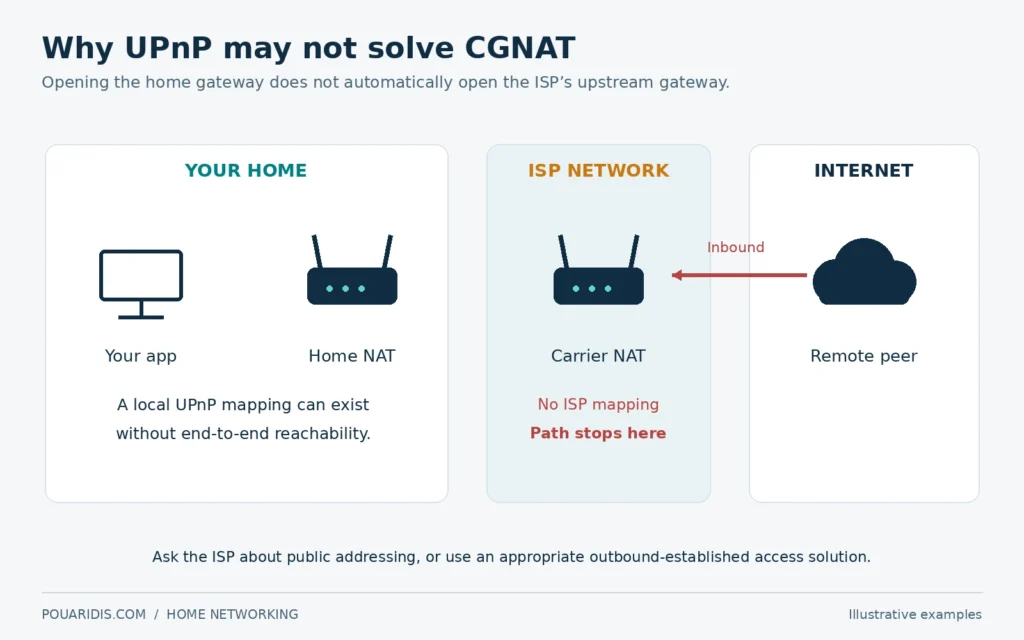
A port mapping on your router controls only that router. If an ISP gateway performs another layer of NAT upstream, incoming traffic must also get through that layer.
Double NAT commonly means two routing/NAT devices in your own connection—for example, an ISP router followed by your own router. Carrier-grade NAT (CGNAT) places another translation layer in the provider’s network, often sharing a public IPv4 address among subscribers. RFC 6598 reserves 100.64.0.0/10 as shared address space for this kind of deployment.
A WAN address in that range is a useful clue, but its absence does not rule out upstream NAT. Compare the router’s WAN addressing with your connection’s public address and ask your ISP when uncertain. Locally enabling UPnP does not automatically create an ISP-side mapping.
Possible solutions depend on the network: bridge mode for an appropriate extra home router, a public address from the ISP, correctly firewalled IPv6, or an access solution that establishes an outbound connection. IPv6 still needs an inbound firewall policy even where IPv4-style NAT is absent.
UPnP and VPNs: where does the incoming connection arrive?
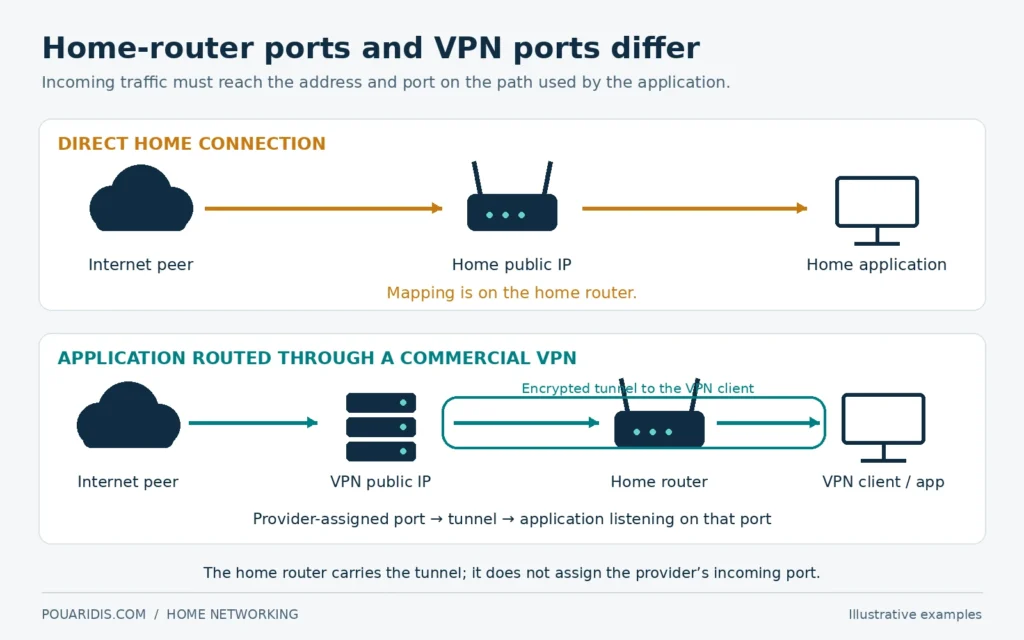
For an application using your normal home connection, incoming traffic targets your home public IP. For an application routed through a commercial VPN, peers normally see the VPN server’s public IP. A port mapping on one address does not create a matching mapping on the other.
If this distinction is new, start with how a VPN works. UPnP is not a VPN protocol; my WireGuard, OpenVPN, and IKEv2 comparison explains the tunneling side.
The home router still carries the VPN’s encrypted packets. The VPN does not physically bypass it. For inbound traffic through a provider’s exit address, the provider must support the necessary forwarding, and the application must listen on the assigned port.
Also avoid the blanket claim that enabling a VPN makes all home-router rules irrelevant. Split tunneling, applications excluded from the VPN, other household devices, and an independently hosted home VPN server may use different paths. Inspect the route used by the specific application.
Using port forwarding with Proton VPN
At the time of review, Proton VPN’s documentation lists port forwarding for paid VPN plans on Windows, macOS, and Linux. Follow its current platform and server requirements; do not assume the free plan or every client supports the same workflow.
For supported BitTorrent-client setups, Proton instructs users to disable the client’s router UPnP/NAT-PMP option and enter the active port shown by Proton VPN. This is an application-specific instruction, not a reason to disable every discovery service on your network. Recheck the assigned port after reconnecting, and follow the guidance on binding the client to the correct VPN interface.
Considering a VPN for this use case? Explore Proton VPN’s plans and features. Check port-forwarding support for your setup before subscribing. A commercial VPN is not required merely to disable UPnP, and it does not secure unrelated services exposed through your home router.
Alternatives: choose the access method for the job
- Only your devices need remote access: consider an authenticated home VPN. My WireGuard VPN setup guide for the UDM-Pro provides a practical example. The VPN endpoint itself still needs an appropriate reachable path.
- A small, known public service needs inbound traffic: a documented manual mapping can give you explicit control. Keep the exposed software maintained.
- A web application needs public access: a properly configured HTTPS reverse proxy may help centralize access. It remains an internet-facing service.
- Direct inbound connectivity is unavailable: evaluate an outbound-established tunnel or overlay with authentication and access controls. Check its trust model, limits, and suitability for your traffic.
A commercial privacy VPN and a VPN server for accessing your own LAN are different deployments. Choose based on the destination you want to reach.
How to check and disable UPnP safely
- Connect locally and open the correct router interface. Use its documented management address or your device’s default gateway. Do not assume every router uses the same IP.
- Record the existing state. Save a configuration backup if supported. Note active mappings, internal devices, protocols, ports, and recognizable descriptions.
- Find the gateway setting. Look under NAT, port forwarding, advanced networking, or UPnP. Follow the documentation for your exact model and firmware.
- Disable UPnP and apply the change. Inspect NAT-PMP and PCP settings separately if your aim is to stop all automatic mappings. Reboot only if the router requires it.
- Review what remains. Existing manual forwarding rules, a DMZ-host setting, IPv6 firewall exceptions, and other remote-access mechanisms are separate. Do not assume the UPnP switch removed them.
- Test from the right location. Check browsing and games, then test intended remote access from another network, such as mobile data with Wi-Fi off. Local access alone does not establish internet reachability.
If something breaks, identify the specific application and its documented requirement before changing more settings. Restore the previous setting if necessary while you investigate, then choose the narrowest working configuration. An online TCP port check does not establish whether a UDP game works or whether your complete network is secure.
Frequently asked questions
Is UPnP a virus?
No. It is a networking technology. Malware may abuse available gateway controls, and vulnerable implementations can be attacked, but having UPnP enabled is not proof of infection.
Will disabling UPnP stop the internet working?
Ordinary outbound access normally continues. Applications relying on automatic inbound mappings may lose remote-access or peer-connectivity features, which is why testing matters.
Does UPnP open every port?
No. Gateway mappings normally identify particular protocols, ports, and destinations. The concern is permission to create those mappings and the services they expose.
Does UPnP improve download speed or ping?
It is not a bandwidth or latency upgrade. Better inbound reachability can help some peer-to-peer applications, but it does not guarantee faster downloads or a lower ping.
Is manual port forwarding always safer?
It gives an administrator an explicit decision point. The resulting exposure may be equivalent, and forgotten manual rules can persist long after they are needed.
Do I need UPnP if I use a VPN?
It depends on which traffic uses the VPN and where incoming connections arrive. Provider-side port forwarding and your home router’s mappings are separate. Other devices and applications may still use the home connection.
My recommendation
Treat UPnP as a convenience feature with a specific purpose. Start with automatic router mappings disabled when you have no known requirement. If you need them, understand which device is requesting what, use restrictions where available, and keep both the router and the application maintained.
Before calling the setup finished, confirm four things: you know which services are exposed, you know which public endpoint they use, you have tested the intended connection, and you have removed access that no longer serves a purpose.
If your next step is a commercial VPN, check Proton VPN through my affiliate link. If your goal is private access to home devices, start with the WireGuard remote-access guide above.
Technical sources and product documentation reviewed on October 2, 2026. Router interfaces and provider support can change; use the current documentation for your installation.